
A phone you can hand over with only your apps on it.
A safe world of their own.
KidSafe is a safe kids mode for Android, a calm place for children to play and learn. Only the apps you approve open, the time budget is yours, and the rest of the screen time goes to offline games, stories and real online-safety practice. No ads. No accounts. Nothing leaves the phone.
3 days free, no card needed. Android only.
- Works with zero internet
- Only the apps you approve
- Calls always ring through
- No ads, no accounts
- Ages 4 to 13+
The short answer
What is KidSafe?
KidSafe is an Android kids mode and parental control app. It becomes the phone's Home screen, opens only the apps a parent approves, keeps to a daily time budget, and fills the rest with offline games, stories, creative tools and online-safety practice. It needs no account and works without an internet connection.
- Platform
- Android, on Google Play
- Ages
- 4 to 13+
- Works offline
- Yes, fully
- Account needed
- No
- Ads
- None
- Free trial
- 3 days, no card
- Publisher
- Cafiyn Innovations
- Parent controls
- Behind a PIN
The idea
A child's first phone should not be a feed. It should be a place.
Handing a child a phone usually means handing them everything on it.KidSafe turns that around.You choose what opens and for how long, and the rest of the time goes to games, stories and real practice at staying safe online.
The phone you hand over now
- Every app one tap away
- Ads between the games
- A fight when the time is up
- Wondering what they are looking at
The phone with KidSafe
- Only the apps you approve open
- A time budget you set, with a calm wind-down
- Offline games, stories and creative tools
- Calls still ring through, settings sit behind your PIN
Parental controls and play
Parental controls and play, in one safe Android home screen
Most kids modes only lock a phone down. KidSafe also gives children something good to do inside the walls: games, stories and things to make, all offline.
Only the apps you approve
KidSafe becomes your child's Home screen. You choose which apps can open, and anything else is closed within about a second. Leaving Kids Mode takes your parent PIN.
Daily time limits, without the meltdown
Set a daily time budget. KidSafe ends the day with a finish-your-mission moment and a calm wind-down, never an abrupt cut-off.
Calls always ring through
Notifications go quiet during kid time, but your phone app and incoming calls are never blocked. Do Not Disturb access is optional, and your own settings come back when Kids Mode ends.
Works with zero internet
Every game, story, discovery and activity is built into the app. On a plane, in a car or in a dead zone, KidSafe works exactly the same.
A new adventure every day
A small, balanced set of missions: a brain game, a discovery, something to make, a safety rep and a real-world quest. Then done for the day.
Stories, brain games and discoveries
Choose-your-path stories, adaptive brain games and 90 bite-sized discoveries, all built into the app and all offline.
A studio to create
Guided drawing, Pixel Studio and Beat Lab, with a personal gallery so your child can say: I made this.
Parental controls
Parent Space: see what matters, in plain English
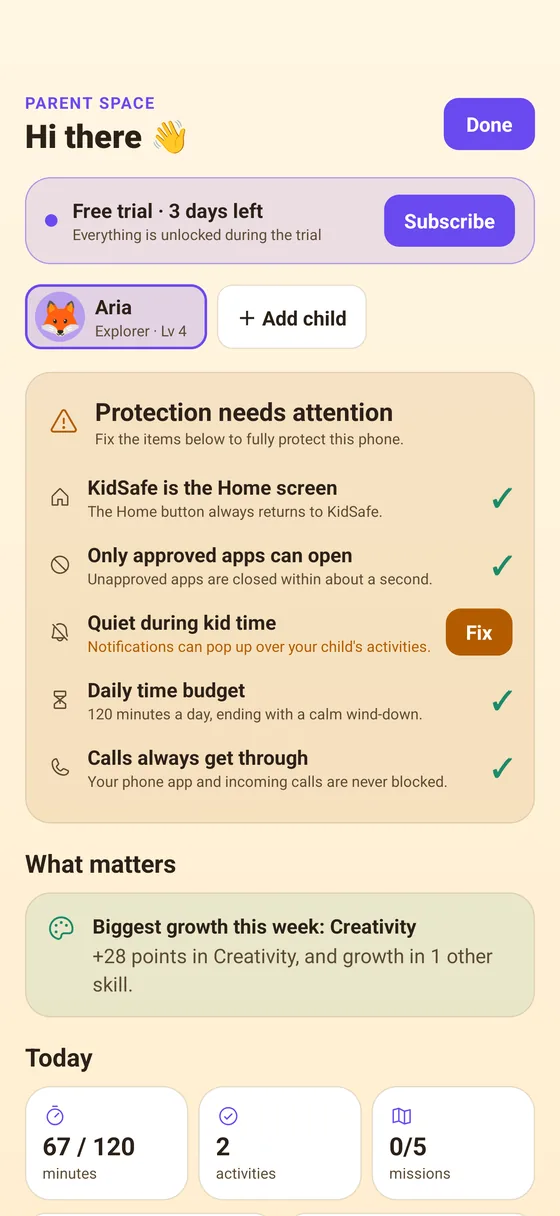
Behind your PIN, Parent Space shows whether protection is on, what your child grew in this week, conversation starters for the dinner table, and a plain-English log of everything KidSafe did, such as an app it blocked.
- KidSafe is the Home screenThe Home button always returns to KidSafe.
- Only approved apps can openUnapproved apps are closed within about a second.
- Quiet during kid timeNotifications are silenced. Calls still ring through.
- Daily time budget60 minutes a day, ending with a calm wind-down.
- Calls always get throughYour phone app and incoming calls are never blocked.
Examples from the Parent Space screen
Aria is still learning: Kindness & bullying
50% smart choices so far. The Safety Gym keeps bringing these back, and a 5-minute chat together helps even more.
Biggest growth this week: Critical Thinking
+16 points in Critical Thinking, and growth in 4 other skills.
Talk about it tonight
Aria practised "Secret accounts". Ask: "What would you do if that really happened?"
Online safety for kids
Online safety your child practises, not just hears about
Telling a child what to do about a cruel message or a stranger rarely sticks. Practising it does. The Safety Gym puts realistic texts, chats and pop-ups in front of your child, lets them choose, then shows them why.
Tricky situations come back until they become instinct, and Parent Space shows you which topics deserve a conversation at home. Everything runs offline, so nothing your child types or taps is sent anywhere.
- Cruel and unkind messages
- Secret accounts
- Chats with people they do not know
- Pop-ups and too-good-to-be-true offers
A cruel message
Everyone thinks you're weird. You should just quit the team.
What do you do?
Try it. This is a taste of the Safety Gym in the same text, chat and pop-up style. In the app, every situation explains why after your child chooses.
Talking about online safety at home: five habits
An app helps, but the biggest protection is a child who knows they can tell you anything. These habits line up with advice from child-safety organisations.
Practise before it happens
Rehearse what to do with a cruel message, a stranger or a too-good-to-be-true pop-up. A child who has done it once in a safe place freezes less when it is real.
Make telling you easy
Trust is what gets a child to come to you. Stay calm, thank them for telling you, and avoid taking the device away as a first reaction.
Keep the evidence
Screenshots with dates help if you need to report something later. Encourage your child to save a harmful message instead of deleting it.
Block, then report
Block the sender, report the content on the platform, and tell the school if a classmate is involved. If there is a threat, tell the police.
Agree the rules together
Write down screen-time limits, device-free places and bedtimes as a family. The rules stick better when your child helped make them.
Further reading
Screenshots
See KidSafe in action
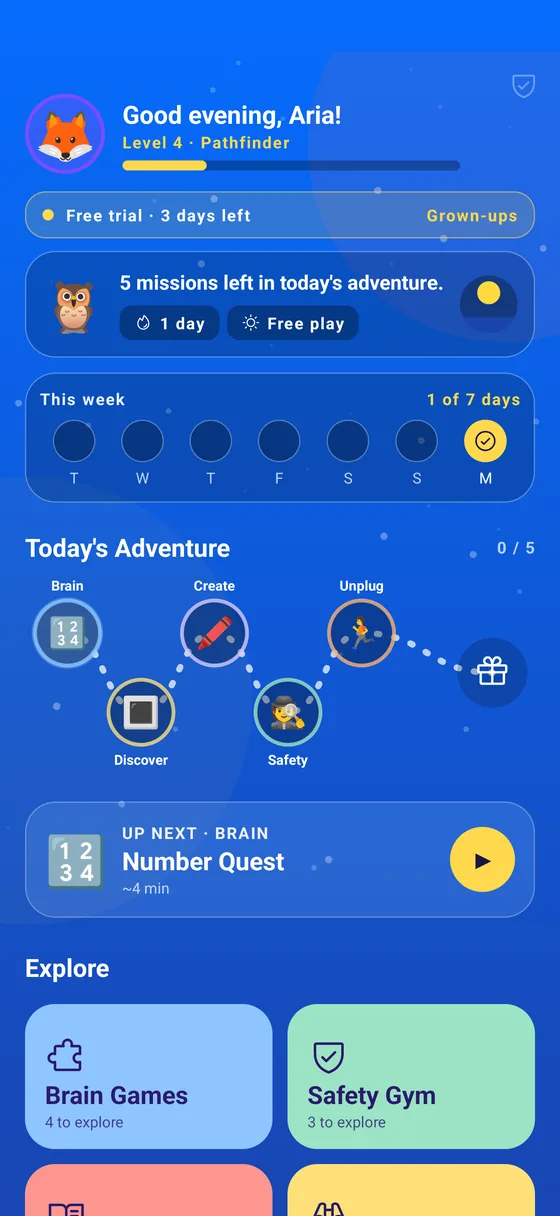
Six screens from the Android app: the daily adventure, the Safety Gym, stories, rewards, skills and Parent Space.
Daily adventure and places to explore
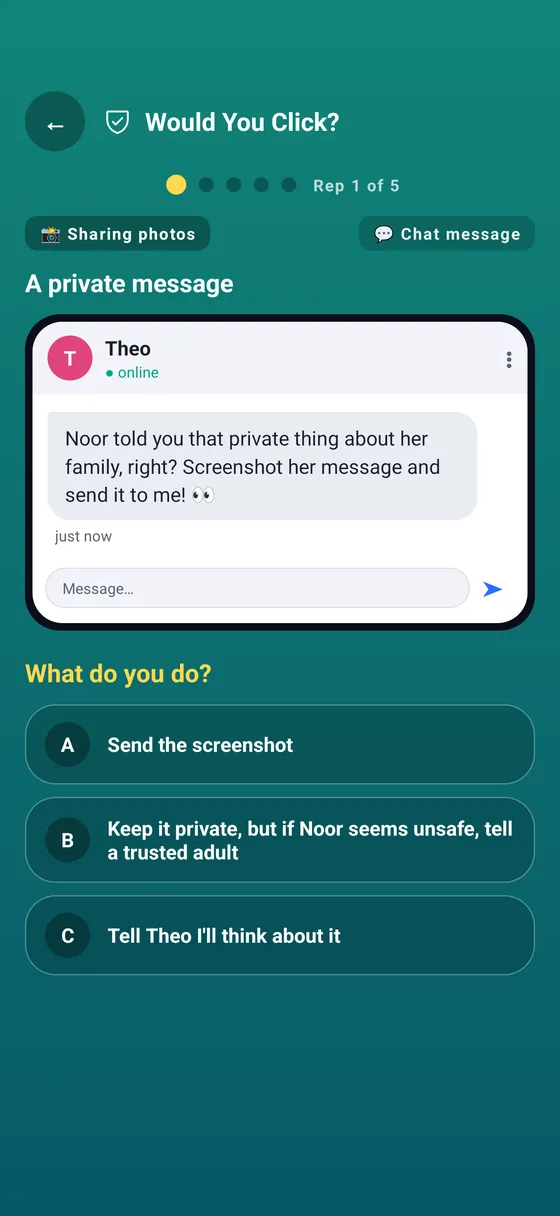
The Safety Gym: would you click?

Stories where your child chooses
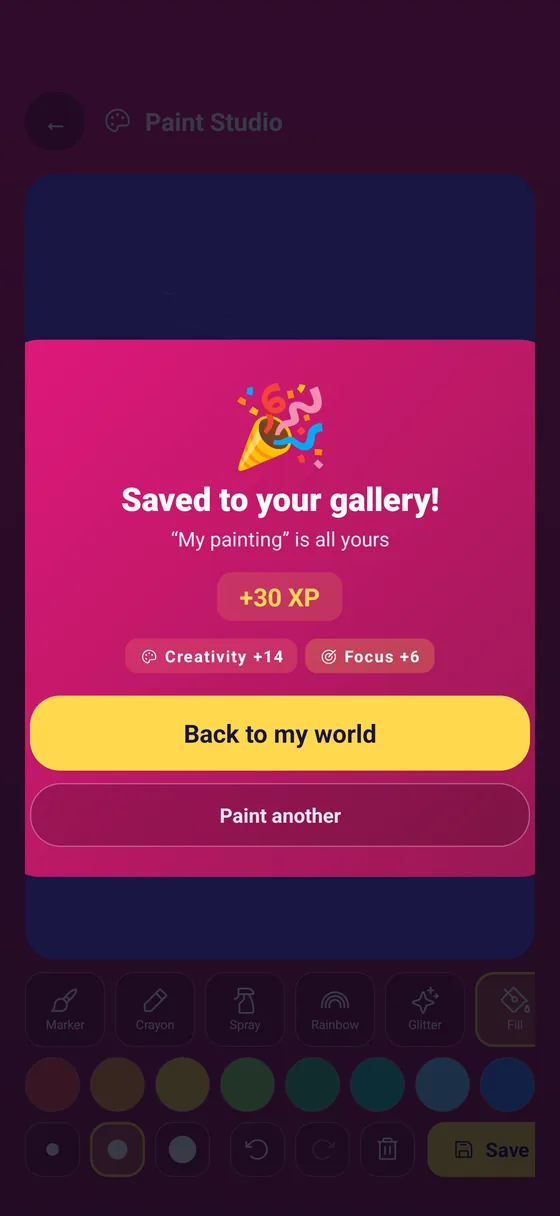
Make it, paint it, keep it
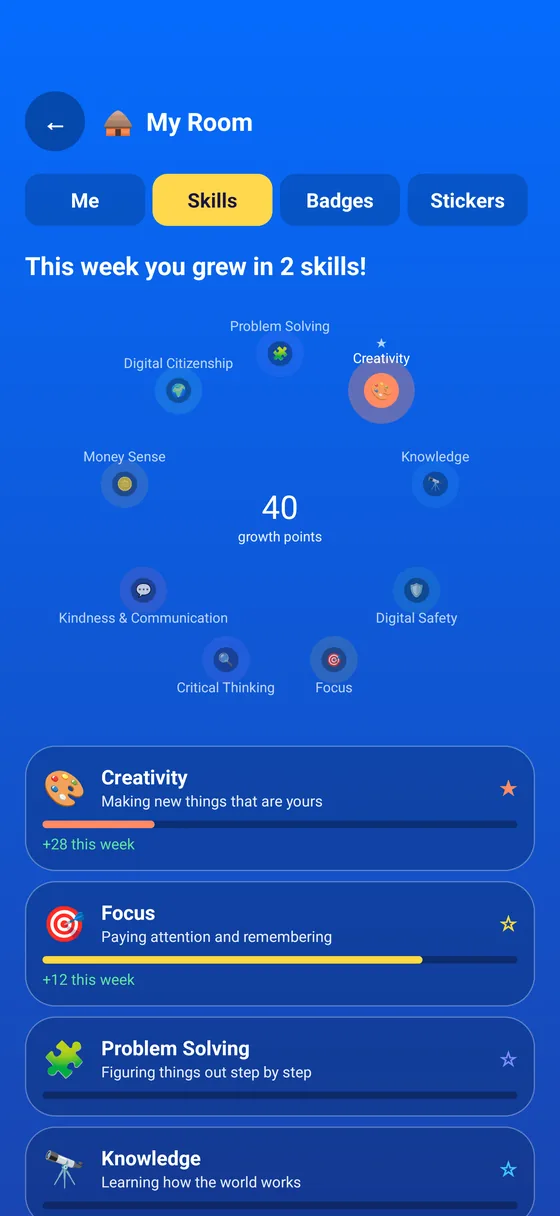
Nine skills to grow
Parent Space, in plain English
Swipe to see more
Setup
How to set up a safe kids mode on Android with KidSafe
Six steps, done once. After that, your child just opens the phone.
Install KidSafe from Google Play
Download it and start the 3-day free trial. There is no account to create and no card to enter.
Create your parent PIN
Choose a PIN and a recovery answer. Both stay on the phone, stored only as a one-way hash that cannot be read back.
Add your child
Enter a first name or nickname, choose an age stage and pick an avatar. None of it is uploaded anywhere.
Approve the apps they can use
Pick the apps that may open. Everything else stays closed, and your own apps stay out of reach.
Make KidSafe the Home app
Set KidSafe as the phone's Home app and allow Usage Access. Together they keep the Home button returning to KidSafe and let it close apps you have not approved.
Hand over the phone
Your child plays, learns and practises. Everything else is managed behind your PIN, and you can switch Kids Mode off at any time.
Setup screens can look a little different between Android versions and phone makers.
Why KidSafe asks for these permissions
Android only lets a Home app close other apps, so blocking needs both of the first two. Each permission is used for one job and nothing leaves the phone.
Home app
Keeps the Home button returning your child to KidSafe. Android only lets the Home app close other apps, so blocking needs this.
Usage Access
Used only to see which app is in front, so KidSafe can close apps you have not approved. This never leaves the device.
Do Not Disturb access (optional)
Quiets notifications during kid time while calls ring through. Your own settings are restored when Kids Mode ends.
Read-aloud voice
For younger children, KidSafe uses your phone's built-in, on-device voice. Nothing is sent to a server.
Choose an age stage when you add each child. Brain games adapt as they improve, and younger children can have text read aloud by the phone's built-in voice, so KidSafe grows with a child from about 4 to 13 and beyond.
Compare
KidSafe compared with other ways to make a phone kid-safe
There is no single right tool. Here is how three common approaches differ, so you can pick the one that fits your family.
Needs an account or internet to apply rules
- Remote parental control suites
- Usually
- Built-in kids modes and basic launchers
- Varies
- KidSafe
- No account, works offline
Limits the phone to approved apps
- Remote parental control suites
- Often, by blocking or timing apps
- Built-in kids modes and basic launchers
- Yes
- KidSafe
- Yes, behind a parent PIN
Daily time limit
- Remote parental control suites
- Usually
- Built-in kids modes and basic launchers
- Varies
- KidSafe
- Yes, with a calm wind-down
Brings its own games, stories and learning
- Remote parental control suites
- Rarely
- Built-in kids modes and basic launchers
- Sometimes
- KidSafe
- Yes, 200+ offline activities
Teaches online safety by practice
- Remote parental control suites
- Rarely
- Built-in kids modes and basic launchers
- Rarely
- KidSafe
- Yes, the Safety Gym
Stores information about your child
- Remote parental control suites
- Often on a server
- Built-in kids modes and basic launchers
- Varies
- KidSafe
- No, it stays on the phone
Tracks location or reads messages
- Remote parental control suites
- Often an option
- Built-in kids modes and basic launchers
- No
- KidSafe
- No
| What you get | Remote parental control suites | Built-in kids modes and basic launchers | KidSafe |
|---|---|---|---|
| Needs an account or internet to apply rules | Usually | Varies | No account, works offline |
| Limits the phone to approved apps | Often, by blocking or timing apps | Yes | Yes, behind a parent PIN |
| Daily time limit | Usually | Varies | Yes, with a calm wind-down |
| Brings its own games, stories and learning | Rarely | Sometimes | Yes, 200+ offline activities |
| Teaches online safety by practice | Rarely | Rarely | Yes, the Safety Gym |
| Stores information about your child | Often on a server | Varies | No, it stays on the phone |
| Tracks location or reads messages | Often an option | No | No |
A general comparison of approaches, not of specific products. Features differ between products, so check each one before you choose.
Choose KidSafe if
- You hand a phone to a child to play and learn on
- You want no account, no cloud and no ads
- You want it to work on a plane, in a car or in a dead zone
- You want online safety taught by practice
Look elsewhere if
- You need live location sharing
- You need web filtering or remote monitoring of a teenager's own phone
- You want to manage rules from your own phone while apart
KidSafe does not track location, filter the web or monitor a phone remotely. It is a supervision aid, not a replacement for adult supervision.
Real life
Where KidSafe helps most
From the back seat of a car to a child's first phone, these are the moments where a safer screen helps most.
Long drives and flights
No Wi-Fi, no problem. Everything in KidSafe works offline, so the back seat stays busy.
Handing over your phone
At a restaurant, a waiting room or a visit, your child reaches only what you approved. Everything else on your phone stays closed.
A first phone for a young child
A short list of approved apps, and calls that always ring through, makes a first phone feel safe for everyone.
Screen time that ends calmly
A daily budget that finishes with a wind-down instead of a fight over the phone.
Learning at home
Brain games, stories and discoveries that reward curiosity, with nine skills growing week by week.
Teaching online safety early
Practise what to do about a cruel message, a stranger or a pop-up before it happens for real.
Guides
Plain answers for parents
What Android already gives you, where each tool helps and where it does not.Every guide lists its sources.
Privacy
Private by design: no ads, no accounts, no servers
A kids app should not be a data business. KidSafe works fully offline, so there is nothing to collect and nowhere to send it.
- No accounts and no servers: your family's information stays on your phone.
- No advertising, and no analytics or third-party SDKs that collect data.
- Everything is stored in private app storage and excluded from device backups, apart from the free trial dates (see the privacy policy).
- Your PIN and recovery answer are stored only as a salted one-way hash.
- Settings, purchases and data controls sit behind your PIN, and a child never sees a price.
- Erase a child's data from Parent Space at any time. Uninstalling removes everything.
KidSafe is designed with COPPA and GDPR-K in mind. Read the full KidSafe privacy policy, the terms of use, or the FTC's guide to children's privacy (opens in a new tab).
Pricing
KidSafe pricing: free for 3 days, then KidSafe Plus
3-day free trial of everything, no card required, plus one optional 2 day extension. After that, a plan is needed to keep using KidSafe.
Monthly
Cancel anytime
Annual
Lifetime
Pay once, yours forever
KidSafe offers auto-renewing subscriptions ($2.99 per month or $11.99 per year). Payment is charged to your Google Play account at confirmation of purchase. Subscriptions renew automatically unless cancelled at least 24 hours before the end of the current period; manage or cancel any time in your account settings. A lifetime option ($29.99) is a single payment that never renews. Prices may vary by region.
Questions
KidSafe FAQ: kids mode, parental controls and privacy
The things parents ask before installing. Still unsure? Email support@cafiyn.com and a person will answer.
What is KidSafe?
KidSafe is an Android kids mode and parental control app. It becomes the phone's Home screen, opens only the apps a parent approves, keeps to a daily time budget, and fills the rest with offline games, stories, creative tools and online-safety practice. It needs no account and works without an internet connection.
What does my child see when they pick up the phone?
KidSafe's own Home screen: a calm place with games, stories, creative tools and the apps you approved. Anything else closes within about a second, and calls still ring through. Settings and purchases sit behind your parent PIN, and a child never sees a price.
Does KidSafe work without internet?
Yes. Every game, story, discovery and creative tool is built into the app, so KidSafe works with no Wi-Fi or mobile data. Its only network use is Google Play, for purchases.
Is KidSafe free?
KidSafe starts with a 3-day free trial of everything, and no card is needed. When the 3 days end, a parent can add 2 more free days, one time only. After that, KidSafe Plus is needed to keep using the app: $2.99 a month, $11.99 a year, or $29.99 once for lifetime. Google Play shows the price in your own currency before you confirm.
Is there a KidSafe app for iPhone?
KidSafe is Android only at the moment. It works as the phone's Home app and uses Android's Usage Access, and you can find it on Google Play.
What ages is KidSafe for?
KidSafe is made for children from about 4 to 13 and older. You choose an age stage for each child, brain games adapt as they improve, and younger children can have text read aloud by the phone's built-in voice.
How does KidSafe stop my child opening other apps?
KidSafe is set as the phone's Home app, so the Home button always returns to it. With Usage Access allowed, it sees which app is in front and closes any app you have not approved, within about a second. Leaving Kids Mode needs your parent PIN. KidSafe is a supervision aid, and it cannot promise to block every action on every Android version.
Can my child still receive phone calls?
Yes. KidSafe is designed to let calls ring through, and your phone app and incoming calls are never blocked. Do not rely on any app as your only way to reach a child in an emergency.
Does KidSafe collect my child's data or show ads?
No. KidSafe has no accounts and no servers, shows no advertising, and includes no analytics or third-party SDKs that collect data. Your child's progress and creations stay on the phone, and you can erase them from Parent Space at any time.
Is KidSafe COPPA compliant?
KidSafe is designed with COPPA and GDPR-K in mind. It does not collect personal information from children: everything a child does stays on the device, and every setting and purchase sits behind the parent's PIN. The full details are in the KidSafe privacy policy.
What is the Safety Gym?
The Safety Gym is KidSafe's online-safety practice. Your child sees realistic texts, chats and pop-ups, chooses what to do, then learns why. Tricky situations come back until they become instinct, and Parent Space shows which topics deserve a conversation at home.
How is KidSafe different from other parental control apps?
Many parental control apps watch a phone remotely through an account and an internet connection. KidSafe works the other way round: it turns the phone into a safe, offline place for children, and nothing is sent anywhere. It does not track location or filter the web, so if you need those, choose a tool built for them.
Does KidSafe track my child's location or monitor their messages?
No. KidSafe has no servers and does not read messages or track location. Parent Space shows a plain-English log on the phone itself, such as an app KidSafe blocked.
What happens when the free trial ends?
A parent can add 2 more free days once, with no card. After that, or if you say no, KidSafe is paused until you buy KidSafe Plus, and the trial never turns into a paid plan on its own. While it is paused you can still enter your PIN to buy or restore a plan, exit Kids Mode or erase your child's data, and your child's progress is kept.
How do I cancel my subscription?
Subscriptions are billed through your Google Play account. Open Google Play, go to Payments and subscriptions, choose KidSafe and cancel any time. Cancel at least 24 hours before the renewal date to avoid the next charge.
A phone you can hand over, with only your apps on it.
KidSafe is live on Google Play. Try everything free for 3 days, no card needed. No ads, no accounts.
KidSafe is part of Better Life: apps that help you, then let you go. It is published by Cafiyn Innovations. This page was last updated on . Looking for something calmer for yourself? See Stillow, our app for calm, focus and sleep.